Workflow Actie - E-mail Verzenden
In dit artikel leer je hoe je de actie “E-mail Verzenden” in je workflow kunt gebruiken om e-mailcommunicatie met je contacten te automatiseren en te personaliseren. We begeleiden je door de belangrijkste voordelen van deze actie, bieden een stapsgewijs proces voor het instellen ervan en delen een praktisch voorbeeld om je op weg te helpen. Aan het einde van dit artikel ben je in staat om je e-mailautomatisering te verbeteren en de klantbetrokkenheid te verhogen.
INHOUDSOPGAVE
Wat is de “E-mail Verzenden” Workflow Actie?
Belangrijke Voordelen van het Gebruik van de “E-mail Verzenden” Actie
Stapsgewijs Proces voor het Gebruik van de “E-mail Verzenden” Workflow Actie
Voorbeeld: Verzenden van een Boeking Bevestigings E-mail
Wat is de “E-mail Verzenden” Workflow Actie?
De “E-mail Verzenden” actie in je automatiseringsworkflow stelt je in staat om gepersonaliseerde en geautomatiseerde e-mails naar je contacten te verzenden op het juiste moment. Deze actie is essentieel voor marketing, klantenservice en follow-upprocessen, en zorgt ervoor dat je communicatie tijdig, effectief en gepersonaliseerd is.
Belangrijke Voordelen van het Gebruik van de “E-mail Verzenden” Actie
Tijdige Communicatie: Automatiseert het verzenden van e-mails, zodat je contacten berichten op de meest geschikte momenten ontvangen zonder handmatige inspanning.
Personalisatie: Je kunt de inhoud van de e-mail aanpassen met dynamische velden, zoals de voornaam van de ontvanger of afspraakdetails, om elk bericht boeiender te maken.
Verbeterde Klantbeleving: Door automatisch bevestigings-e-mails, herinneringen of follow-ups te verzenden, verhoog je de klanttevredenheid en verklein je de kans op miscommunicatie.
Tijdswinst: Door sjablonen en geautomatiseerde workflows in te stellen, verminder je de behoefte aan handmatig e-mailen, wat tijd bespaart en consistentie waarborgt.
Flexibiliteit: Je kunt bestanden bijvoegen, aangepaste sjablonen gebruiken en de e-mailinhoud aanpassen aan je zakelijke behoeften.
Stapsgewijs Proces voor het Gebruik van de “E-mail Verzenden” Workflow Actie
Voeg de “E-mail Verzenden” Actie Toe aan je Workflow
Open je workflow-editor en sleep de “E-mail Verzenden” actie naar het juiste punt in je workflow (bijv. na een trigger zoals een boeking of formulierinzending).

Configureer de Actienaam
Geef de actie een duidelijke, beschrijvende naam (bijv. “Boeking Bevestigings E-mail”).

Vul de Gegevens van de Afzender in
Van Naam: Voer de naam in die als afzender zal verschijnen (bijv. “Mijn Bedrijf”).
Van E-mail: Voer het e-mailadres in van waaruit de e-mail zal worden verzonden (bijv. “[email protected]”).

Maak de Onderwerpsregel
Voer een relevante onderwerpsregel in die de ontvanger een idee geeft van de inhoud van de e-mail (bijv. “Bedankt voor je Boeking!”).

Kies of Maak de E-mailbody
Sjablonen: Selecteer een e-mailsjabloon uit de dropdown (optioneel). Als er geen sjabloon beschikbaar is, schrijf dan een aangepaste boodschap in het veld E-mailbody.

E-mailbody: Maak hier je e-mailbody. Gebruik aangepaste waarden om het bericht te personaliseren. Voorbeeld:
Hi {{contact.first_name}},
Bedankt voor je boeking! Je afspraak is gepland voor {{appointment.start_time}}.

Voeg Bijlagen Toe (Optioneel)
Indien nodig kun je bestanden aan de e-mail toevoegen, zoals bevestigingen of facturen.

Test de E-mail
Stuur een test-e-mail om te controleren of de inhoud en opmaak correct zijn.
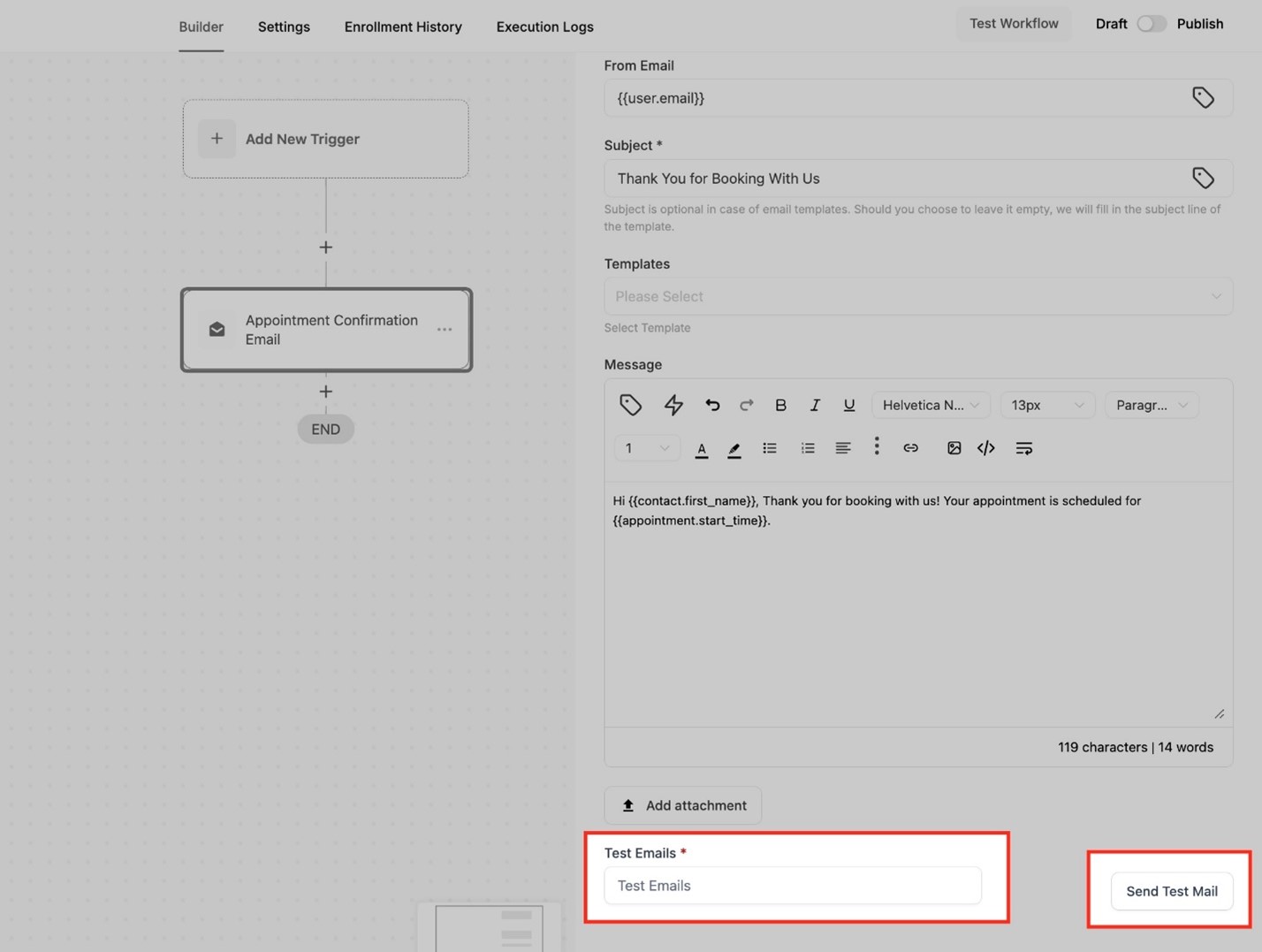
Sla de Actie op en Activeer
Klik op Opslaan Actie. De e-mail wordt automatisch verzonden wanneer de workflow dit punt bereikt.

Cc/Bcc in de E-mail Actie
Voeg cc/bcc-velden toe in de e-mailactie door op de cc/bcc-knoppen te klikken. De respectieve velden worden ingevuld wanneer je op de knop klikt.


Voorbeeld: Verzenden van een Boeking Bevestigings E-mail
Trigger: De workflow begint wanneer een klant een boeking maakt.
Actie: Voeg de “E-mail Verzenden” actie toe om een bevestigings-e-mail naar de klant te sturen.
Actienaam: Boeking Bevestigings E-mail
Van Naam: Mijn Bedrijf
Van E-mail:[email protected]
Onderwerp: Bedankt voor je Boeking!
E-mailbody:
Hi {{contact.first_name}},
Bedankt voor je boeking! Je afspraak is gepland voor {{appointment.start_time}} op {{appointment.only_start_date}}.
We kijken ernaar uit je binnenkort te zien!
Voeg Bestanden Toe (Optioneel): Voeg relevante documenten toe.
Test de E-mail: Stuur een test-e-mail om de inhoud te controleren.
Sla en Activeer: Sla de e-mailactie in je workflow op.
Punten om te Onthouden voor Cc/Bcc
Cc en Bcc e-mails worden niet weergegeven in de E-mail Statistieken.
De Test E-mail functie werkt niet voor Cc/Bcc E-mails.
Succes en Falen zijn afhankelijk van alleen het Contact E-mailadres (naar e-mail) en niet van Cc/Bcc E-mails.
Ongeldige cc/bcc-e-mails worden overgeslagen, maar geldige gaan door.
Beide velden zijn niet verplicht.
Workflow Action - Send Email
In this article, you’ll learn how to use the “Send Email” action in your workflow to automate and personalize email communication with your contacts. We’ll guide you through the key benefits of this action, provide a step-by-step process for setting it up, and share a practical example to help you get started. By the end of this article, you’ll be equipped to enhance your email automation and improve customer engagement.
TABLE OF CONTENTS
What is the “Send Email” Workflow Action?
Key Benefits of Using the “Send Email” Action
Step-by-Step Process for Using the “Send Email” Workflow Action
Example: Sending a Booking Confirmation Email
What is the “Send Email” Workflow Action?
The “Send Email” action in your automation workflow allows you to send personalized and automated emails to your contacts at the right time. This action is vital for marketing, customer service, and follow-up processes, ensuring that your communication is timely, effective, and personalized.
Key Benefits of Using the “Send Email” Action
Timely Communication: Automates the sending of emails, ensuring your contacts receive messages at the most appropriate moments without manual effort.
Personalization: Customize the email’s content using dynamic fields, such as the recipient’s first name or appointment details, to make each message more engaging.
Improved Customer Experience: Automatically sending confirmation emails, reminders, or follow-ups enhances customer satisfaction and reduces miscommunication.
Time-Saving: Setting up email templates and automated workflows reduces the need for manual email sending, saving time and ensuring consistency.
Flexibility: Attach files, use custom templates, and modify email content to suit your business needs.
Step-by-Step Process for Using the “Send Email” Workflow Action
Add the “Send Email” Action to Your Workflow
Open your workflow editor and drag the “Send Email” action into your workflow at the appropriate point (e.g., after a trigger like a booking or form submission).
Configure the Action Name
Assign a clear, descriptive name for the action (e.g., “Booking Confirmation Email”).
Fill in Sender Details
From Name: Enter the name that will appear as the sender (e.g., “My Company”).
From Email: Input the email address from which the email will be sent (e.g., “[email protected]”).
Create the Subject Line
Enter a relevant subject line that gives the recipient an idea of the email content (e.g., “Thank You for Booking with Us!”).
Choose or Create the Email Body
Templates: Select an email template from the dropdown (optional). If no template is available, write a custom message in the Email Body field.
Email Body: Create your email body here. Use custom values to personalize the message. For example:
Hi {{contact.first_name}},
Thank you for booking with us! Your appointment is scheduled for {{appointment.start_time}}.
Add Attachments (Optional)
If necessary, attach files to the email, such as booking confirmations or invoices.
Test the Email
Before finalizing, send a test email to ensure the content and formatting are correct.
Save and Activate the Action
Once you’re satisfied with the configuration, click Save Action. The email will now be sent automatically when the workflow reaches this step.
Cc/Bcc in Email Action
You can add cc/bcc fields in the email action by clicking on the cc/bcc buttons. The respective fields will populate when you click the button.
Example: Sending a Booking Confirmation Email
Trigger: The workflow begins when a customer makes a booking.
Action: Add the “Send Email” action to send a confirmation email to the customer.
Action Name: Booking Confirmation Email
From Name: My Company
From Email:[email protected]
Subject: Thank You for Booking with Us!
Email Body:
Hi {{contact.first_name}},
Thank you for booking with us! Your appointment is scheduled for {{appointment.start_time}} on {{appointment.only_start_date}}.
We look forward to seeing you soon!
Attach Files (Optional): Add any relevant documents.
Test the Email: Send a test email to check the content.
Save and Activate: Save the email action in your workflow.
Points to Remember for Cc/Bcc
You can add cc, bcc, or both in the Email action.
Cc and Bcc emails will not be reflected in the Email Stats.
The Test Email feature will not work for Cc/Bcc Emails.
Success and Failure depend only on the Contact Email (to email) and not Cc/Bcc Emails.
You can add multiple cc/bcc emails, separated by commas.
If one of the cc/bcc emails is invalid, the invalid email will be skipped, but other valid emails will go through.
Both fields are non-mandatory.