Deel je beoordelingen als berichten op sociale media met Social Planner
Dit artikel biedt een uitgebreide handleiding over hoe je de Social Planner-tool kunt gebruiken om je beoordelingen als berichten op verschillende sociale mediaplatforms te delen.
Door de onderstaande stappen te volgen, leer je hoe je positieve feedback effectief kunt promoten, betrokkenheid van je publiek kunt vergroten en je online aanwezigheid kunt versterken.
Voor wie is dit bedoeld?
Of je nu een ondernemer of marketingprofessional bent, deze handleiding geeft je de nodige kennis om beoordelingen te gebruiken als een belangrijk onderdeel van je socialmediastrategie.
Automatisering van beoordelingsberichten in Social Planner
De automatisering van beoordelingsberichten in Social Planner stelt gebruikers in staat om beoordelingen die afkomstig zijn van een Google Bedrijfsprofiel of Facebook-pagina automatisch te publiceren op hun sociale mediaprofielen.
Ontdek de kracht van sociale bewijskracht en vergroot je succes met beoordelingen!
Vertrouwen en geloofwaardigheid opbouwen: Positieve beoordelingen veranderen tevreden klanten in ambassadeurs, wat je geloofwaardigheid versterkt.
Meer zichtbaarheid en impact: Sociale media-algoritmen houden van betrokkenheid. Positieve beoordelingen zorgen voor meer likes, reacties en shares, wat je bereik vergroot.
Social Proof in actie: Positieve beoordelingen laten zien dat je producten en diensten waardevol zijn. Laat je beoordelingen voor zich spreken en zie je klantenbestand groeien!
Hoe automatiseer je beoordelingsberichten in de Social Media Planner
Vereisten:
Verbind je sociale media-accounts via het tabblad "Integraties" in het menu "Instellingen".
Selecteer de platforms waarvan je beoordelingen wilt ophalen (Facebook of Google).
Opmerking: Je hebt een Facebook-pagina of Google Bedrijfsprofielintegratie nodig.
Controleer de ontvangen beoordelingen onder "Reputatie" > tabblad "Beoordelingen".
Maak een automatisering aan via "Social Planner" > "Nieuw bericht" > "Beoordelingen posten".
Navigatiestappen:
Ga naar Marketing > Social Planner.
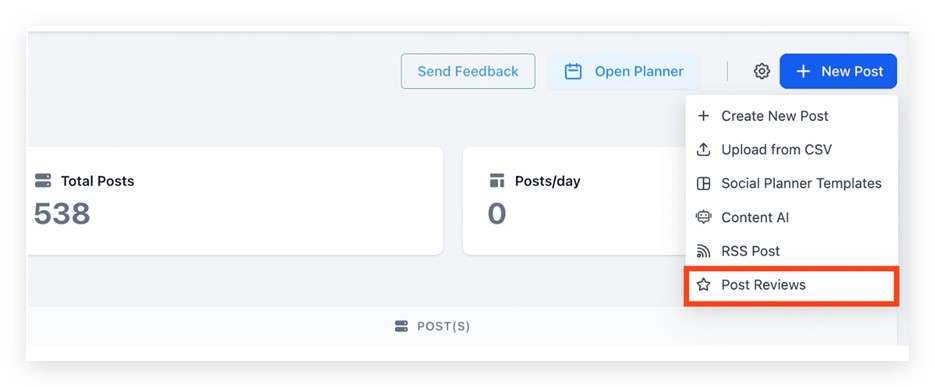
Klik op Beoordelingen posten.
Selecteer de sociale accounts waarvan je de beoordelingen wilt ophalen en kies het sterbeoordelingsbereik van de te plaatsen reviews.
Selecteer de sociale media-accounts waarop je de beoordelingen wilt publiceren.
Kies het maximum aantal berichten dat je wilt publiceren.
Onder “Wanneer verzenden?” plan je het moment van publicatie.

Selecteer de frequentie — Dagelijks / Wekelijks / Maandelijks, afhankelijk van hoe vaak je beoordelingen wilt plaatsen.
Kies of upload meerdere achtergrondafbeeldingen (JPEG/PNG, 1:1 verhouding, max. 5 MB).
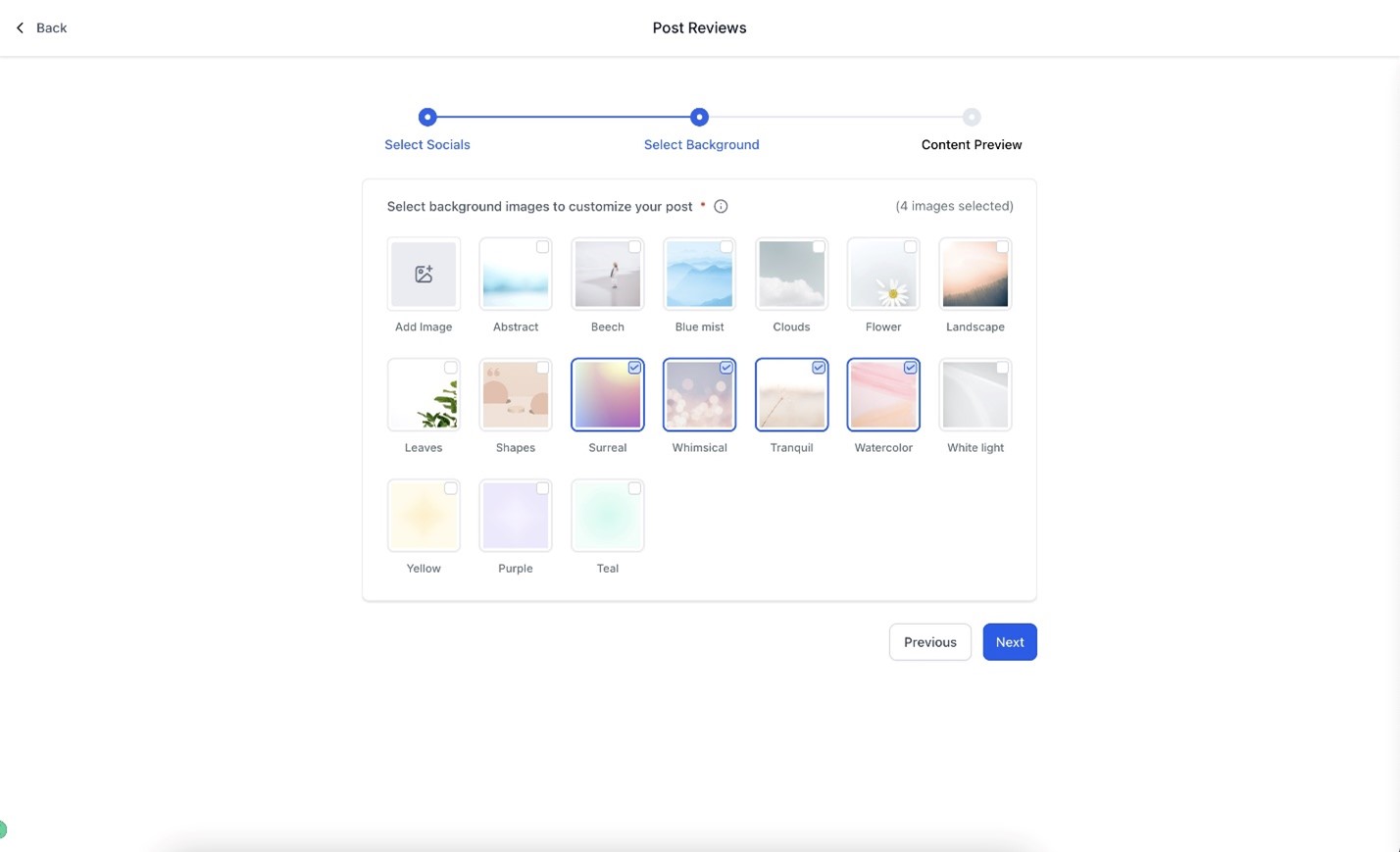
Stel de nieuwe personalisatieopties in, zoals lettertype, grootte en kleur, volgens je merkstijl.

Voeg een aangepaste bijschrift toe of gebruik de inhoud van de beoordeling als bijschrift.
Kies hoe de naam van de klant wordt weergegeven (Volledige naam, Voornaam of Initialen).
Pas lettertype, letterkleur, achtergrondkleur, sterkleur en transparantie aan.
Klaar! Je beoordelingen staan klaar om gepubliceerd te worden.
Controleer de geplande automatisering onder Inhoud > tabblad Beoordelingen.

Je kunt de planning op elk moment pauzeren, bewerken of verwijderen.
Voorbeelden van het plaatsen van beoordelingen:
Voorbeeld 1:
Als je je Google Bedrijfspagina hebt gekoppeld en je ontvangt een nieuwe beoordeling op 1 januari 2024 om 18:00, en je hebt in Social Planner ingesteld dat er dagelijks 5 berichten om 08:37 worden geplaatst, dan wordt deze nieuwe beoordeling gepubliceerd op 2 januari 2024 om 08:37.
Als je meer dan 5 beoordelingen hebt ontvangen, worden alleen de 5 beste (gebaseerd op sterren) geplaatst.
Voorbeeld 2:
Als de klant de frequentie van de beoordelingsautomatisering instelt op “Elke week” met een maximum van 3 berichten, beginnend op 22 oktober 2024 om 11:00, dan worden er elke week 3 beoordelingen geplaatst (elke 7e dag vanaf de aanmaakdatum).
Op 29 oktober 2024 worden er 3 beoordelingen gepubliceerd om 11:00, mits er voldoende nieuwe beoordelingen beschikbaar zijn.
Het maximumaantal berichten betekent dat 3 beoordelingen op dezelfde dag worden geplaatst, niet verspreid over de week.
Dezelfde logica geldt voor dagelijkse, wekelijkse of maandelijkse frequenties.
Belangrijke opmerkingen:
Alleen Google-beoordelingen die na de aanmaakdatum van de automatisering zijn geplaatst, worden opgehaald en gepubliceerd.
Alleen beoordelingen met geschreven tekst (geen alleen-sterbeoordelingen) worden geplaatst.
Als er geen nieuwe geschikte beoordelingen beschikbaar zijn op het geplande tijdstip, wordt het bericht overgeslagen en opnieuw geprobeerd op de volgende geplande datum.
De geplande tijd volgt je lokale tijdzone. Interne systemen kunnen UTC- of servertijd (zoals Los Angeles-tijd) weergeven, maar dit beïnvloedt de daadwerkelijke publicatietijd niet.
Om je Facebook-pagina te koppelen, ga naar Reputatie > Instellingen > Integratie en voeg de URL van je Facebook-pagina toe.
Veelgestelde vragen (FAQ)
1. Hoe krijg ik toegang tot de Social Planner-tool?
Log in op je ByBoostify-account, ga naar het dashboard en selecteer Social Planner in het menu.
2. Kan ik het bericht dat bij mijn beoordeling hoort aanpassen?
Ja! Je kunt het bericht bewerken, hashtags toevoegen en extra informatie opnemen.
3. Op welke sociale mediaplatforms kan ik mijn beoordelingen delen?
Je kunt delen op Facebook, Instagram, LinkedIn en X (Twitter), afhankelijk van je gekoppelde accounts.
4. In welke formaten kan ik mijn beoordelingen delen?
Je kunt beoordelingen delen in tekstvorm of met afbeeldingen en links om meer betrokkenheid te creëren. Zorg ervoor dat je bericht voldoet aan de richtlijnen van het platform.
5. Kan ik berichten inplannen voor specifieke tijden en datums?
Ja, je kunt berichten vooraf plannen op specifieke tijden en datums voor maximale zichtbaarheid.
6. Kan ik een voorbeeld bekijken voordat mijn bericht wordt geplaatst?
Ja, de Social Planner van ByBoostify biedt een voorbeeldfunctie om te zien hoe je bericht eruitziet voordat het live gaat.
7. Hoe werkt de publicatiefrequentie?
Als je de frequentie instelt op “Elke week” met 3 berichten, worden er elke 7e dag vanaf de startdatum 3 beoordelingen geplaatst.
8. Mijn beoordelingen worden niet geplaatst, hoewel de automatisering actief is — wat moet ik doen?
Controleer of je sociale accounts nog steeds verbonden zijn onder Integraties. Als een token is verlopen, moet je je account opnieuw verbinden.
9. Waar maak ik de automatisering aan om beoordelingen automatisch te laten ophalen en publiceren?
Maak deze aan onder Social Planner → Nieuw bericht → Beoordelingen posten, zodat beoordelingen automatisch worden opgehaald en volgens schema gepubliceerd.
Share your Reviews as Posts on Social Media using Social Planner
This article provides a comprehensive guide on how to utilize the Social Planner tool to share your review posts on various social media platforms.
By following the outlined steps, you will learn how to effectively promote positive feedback, enhance audience engagement, and strengthen your online presence.
Who is this for?
Whether you are a business owner or a marketing professional, this resource will equip you with the necessary skills to leverage reviews as a key component of your social media strategy.
Review Post Automation in Social Planner
Review Post automation in Social Planner allows users to publish reviews coming from Google Business Profile or Facebook Page directly on their social media profiles.
Discover the Power of Social Proof and Supercharge Your Success with Reviews!
Builds Trust and Credibility: Positive reviews transform satisfied customers into advocates, establishing credibility for your business.
Boosted Visibility, Maximum Impact: Social media algorithms love engagement. Positive reviews help drive likes, comments, and shares, increasing your reach.
Social Proof Spectacle: Positive reviews signal to potential customers that your products and services are must-haves.
How to Automate Review Posts in the Social Media Planner
Pre-requisites:
Connect your social accounts from the "Integrations" tab under the "Settings" menu.
Select platforms to pull reviews from (Facebook or Google).
Note: You’ll need Facebook Page or Google Business Profile integration for this.
Check for existing reviews received under "Reputation" > "Reviews" tab.
Create a review automation by navigating to "Social Planner" > "New Post" > "Post Reviews".
Navigation Flow:
Go to Marketing > Social Planner.
Click on Post Reviews.
Select the source social accounts to fetch the reviews from and choose the star rating range of reviews to be fetched.
Select the social accounts you want to post the reviews on.
Choose the maximum number of posts you want to publish.
Under “When should we send?”, schedule posts according to your preferred time.
Select posting frequency — Every day/week/month, depending on how often you want reviews to go out.
Pick or upload multiple background images (JPEG/PNG, 1:1 ratio, 5MB max).
Select personalization options: font family, size, and color according to your brand voice.
Add a custom caption, or use the review content as the caption.
Choose how to display the customer’s name (Full name, First name, or Initials).
Customize font family, font color, background color, star color, and opacity.
Once done, your reviews are ready to go live!
Check the review post automation under Content > Review tab.
Pause, edit, or delete anytime to modify your planned schedule.
Examples of Review Posting:
Example 1:
If you have connected your Google Business Page and received a new review on January 1, 2024 at 6:00 PM, and inside Social Planner you’ve set 5 posts per day at 8:37 AM, then the new review will be published on January 2, 2024 at 8:37 AM.
If you received more than 5 reviews, only the top 5 (based on rating) will be posted.
Example 2:
If the client sets the review automation frequency to “Every week” with a post count of 3, starting on October 22, 2024 at 11:00 AM, then 3 reviews will be posted weekly (every 7th day from creation).
On October 29, 2024, 3 reviews will be published at 11:00 AM, provided there are enough eligible reviews.
The maximum post count means 3 reviews will be posted on the same day, not spread out.
The same logic applies for daily, weekly, or monthly frequencies.
Important Notes:
Only Google reviews posted after the automation creation date are fetched and published.
Only reviews with written text (not just star ratings) will be published.
If no new eligible reviews are available, the post will be skipped and retried on the next schedule.
The posting time follows your local timezone. Internal logs may show UTC or server time (e.g., Los Angeles time), but this won’t affect the actual posting time.
To connect your Facebook page(s), go to Reputation > Settings > Integration, and add your Facebook Page URL.
Frequently Asked Questions (FAQ)
1. How do I access the Social Planner tool?
Log in to your ByBoostify account, go to the dashboard, and select Social Planner from the menu.
2. Can I customize the message that accompanies my review post?
Yes! You can edit the message, add hashtags, and include relevant information.
3. Which social media platforms can I share my review posts on?
You can share on Facebook, Instagram, LinkedIn, and X (Twitter) depending on your connected integrations.
4. What formats can I use for sharing review posts?
You can post text-only reviews or include images and links to boost engagement. Make sure the content follows each platform’s rules.
5. Can I schedule posts for specific times and dates?
Yes, you can schedule review posts at specific times and dates for maximum visibility.
6. Can I preview my post before it goes live?
Yes, ByBoostify’s Social Planner provides a Preview feature to check your post before publishing.
7. How does the posting frequency work?
If you set the frequency to "Every week" with 3 posts, 3 reviews will be posted every 7th day from the setup date.
8. My reviews are not getting posted even though automation is active — what should I do?
Make sure your social accounts under Integrations are still connected. If any connection token expired, reauthorize your account.
9. Where do I create the review automation to fetch and publish reviews automatically?
Create it under Social Planner → New Post → Post Reviews to automate fetching and posting reviews on schedule.