Contactlabels Verwijderen Van Meerdere Contacten
Dit artikel laat je zien hoe je tags van meerdere contacten tegelijk kunt verwijderen met de “Verwijder Tags” bulkactie. Of je nu verouderde segmenten opruimt, je CRM opnieuw organiseert of contactmetadata aan het verwijderen bent, deze functie helpt je om nauwkeurige gegevens snel en efficiënt te onderhouden. We begeleiden je door wat deze actie doet, waarom het nuttig is, en precies hoe je het kunt uitvoeren.
INHOUDSOPGAVE
Wat is het Verwijderen van Tags van Meerdere Contacten
Belangrijke Voordelen van het Verwijderen van Tags van Meerdere Contacten
Instellen van de Bulkoperatie voor het Verwijderen van Contacttags
Veelgestelde Vragen
Wat is het Verwijderen van Tags van Meerdere Contacten
Het verwijderen van tags in bulk stelt je in staat om contactgegevens snel op te schonen of te reorganiseren. Dit is vooral handig wanneer contactsegmentatie moet worden bijgewerkt, campagnes zijn beëindigd, of irrelevante tags je CRM vervuilen. In plaats van elk contact afzonderlijk te bewerken, zorgt bulkverwijdering voor snelle en consistente updates.
Belangrijke Voordelen van het Verwijderen van Tags van Meerdere Contacten
Bulk tagverwijdering stroomlijnt het onderhoud van je CRM en zorgt voor schone, nauwkeurige contactsegmentatie. Hier is waarom het waardevol is:
Bespaar tijd door tags in één keer van veel contacten te verwijderen.
Verwijder verouderde of onjuiste tags die automatiseringen beïnvloeden.
Onderhoud een goed georganiseerde contacttagstructuur.
Verminder verwarring door ongebruikte of overlappende labels op te schonen.
Ondersteun nauwkeurige rapportage door ongeldige groeperingen te verwijderen.
Instellen van de Bulkoperatie voor het Verwijderen van Contacttags
Deze sectie leidt je door het proces van het verwijderen van tags van een of meer contacten rechtstreeks vanaf de contactpagina.
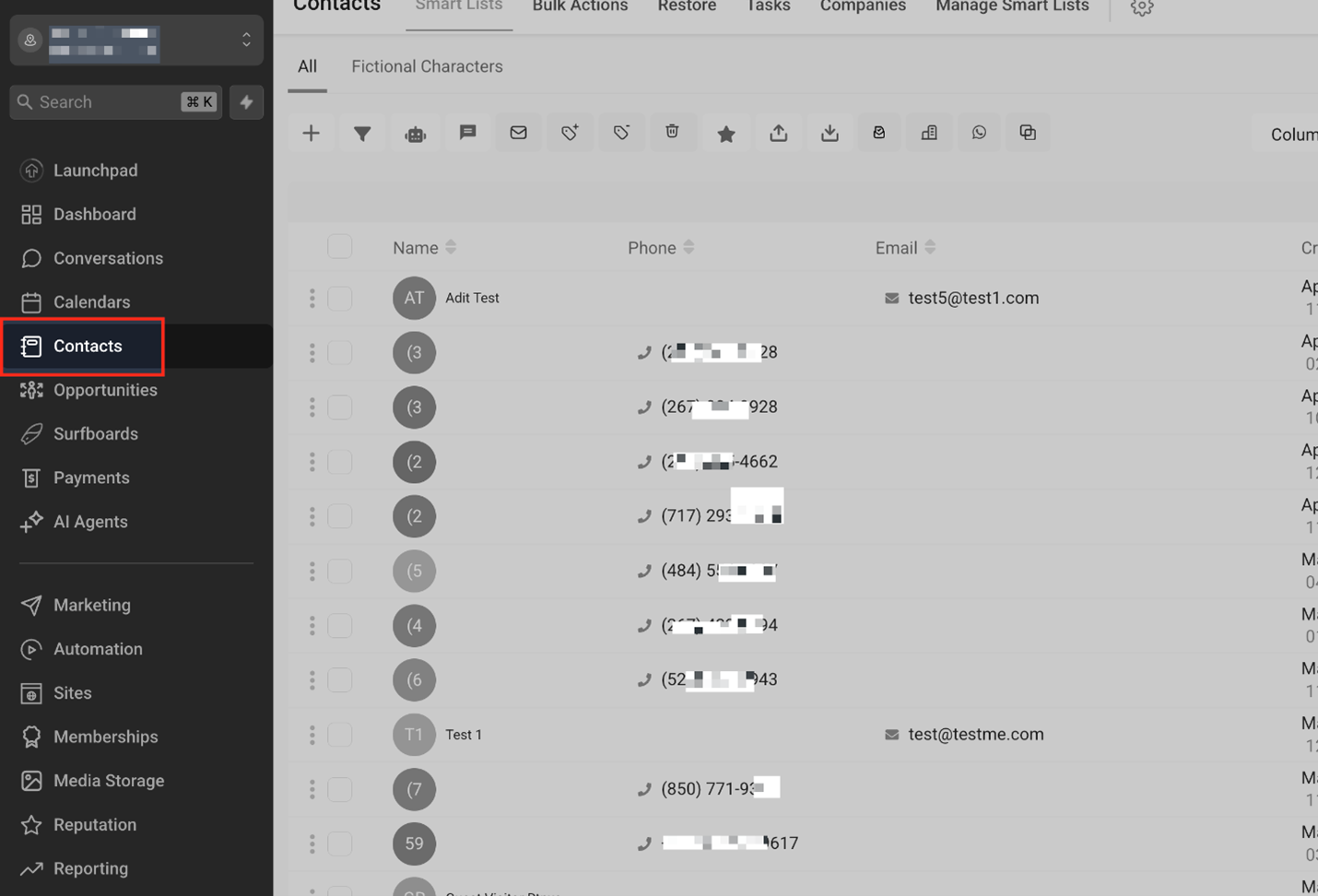
Navigeer naar het “Contacten” Tabblad
Klik in het linkermenu van je dashboard op Contacten om je contactenlijst te openen.
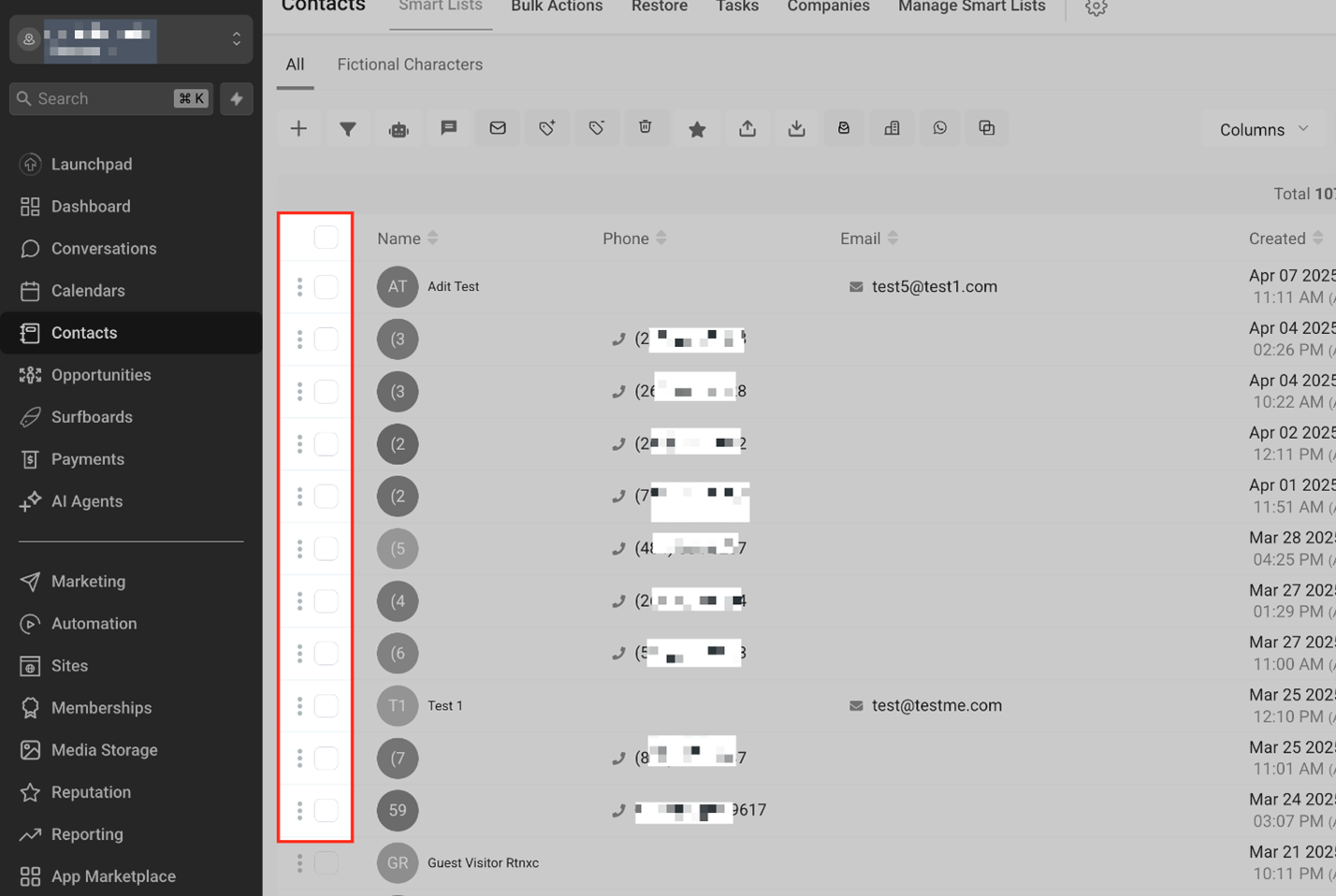
Selecteer Meerdere Contacten
Gebruik de selectievakjes aan de linkerkant om de contacten te selecteren waarvan je tags wilt verwijderen. Je kunt individuele records selecteren of filters gebruiken om groepen te verkleinen.
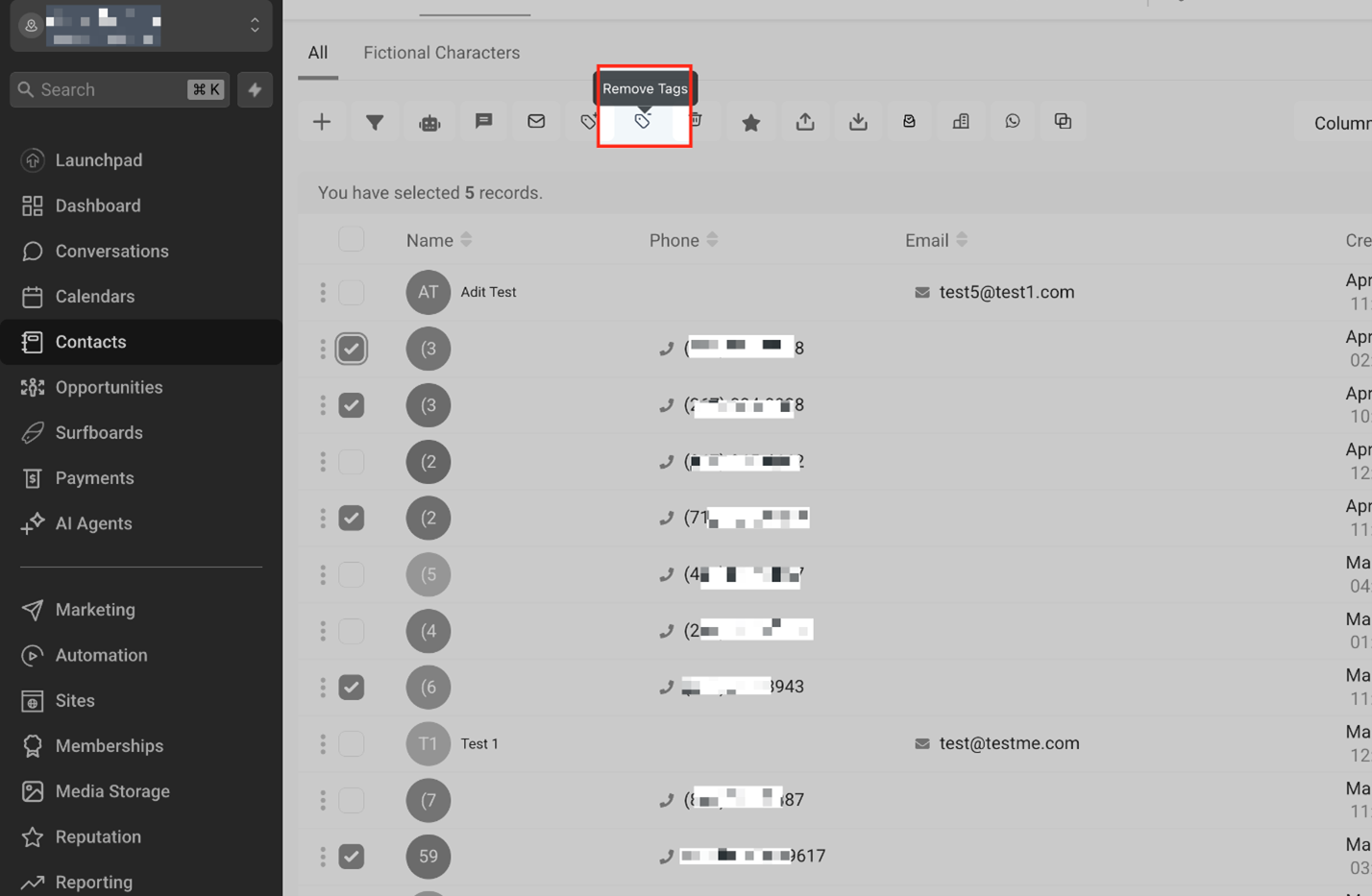
Klik op het “Verwijder Tags” Icoon
Met je geselecteerde contacten klik je op het Verwijder Tags-icoon in de bovenste actiebalk. Dit opent het bulkactiepaneel voor tagverwijdering.
Voeg Actienaam Toe
Voer in de pop-up die verschijnt een Actienaam in voor deze operatie. Dit helpt je de actie later in het Bulkacties-dashboard te identificeren.
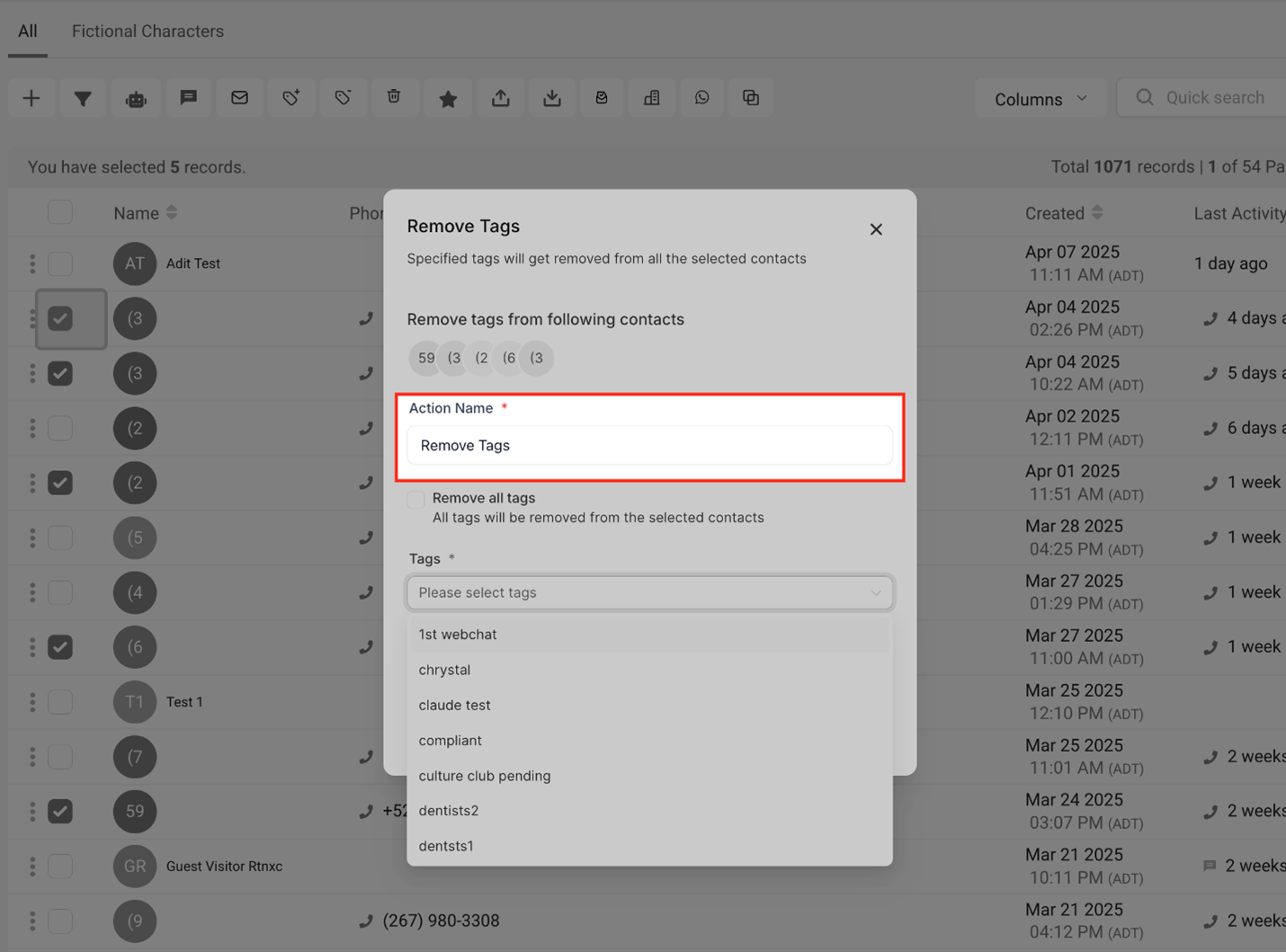
Verwijder Alle Tags van Geselecteerde Contacten
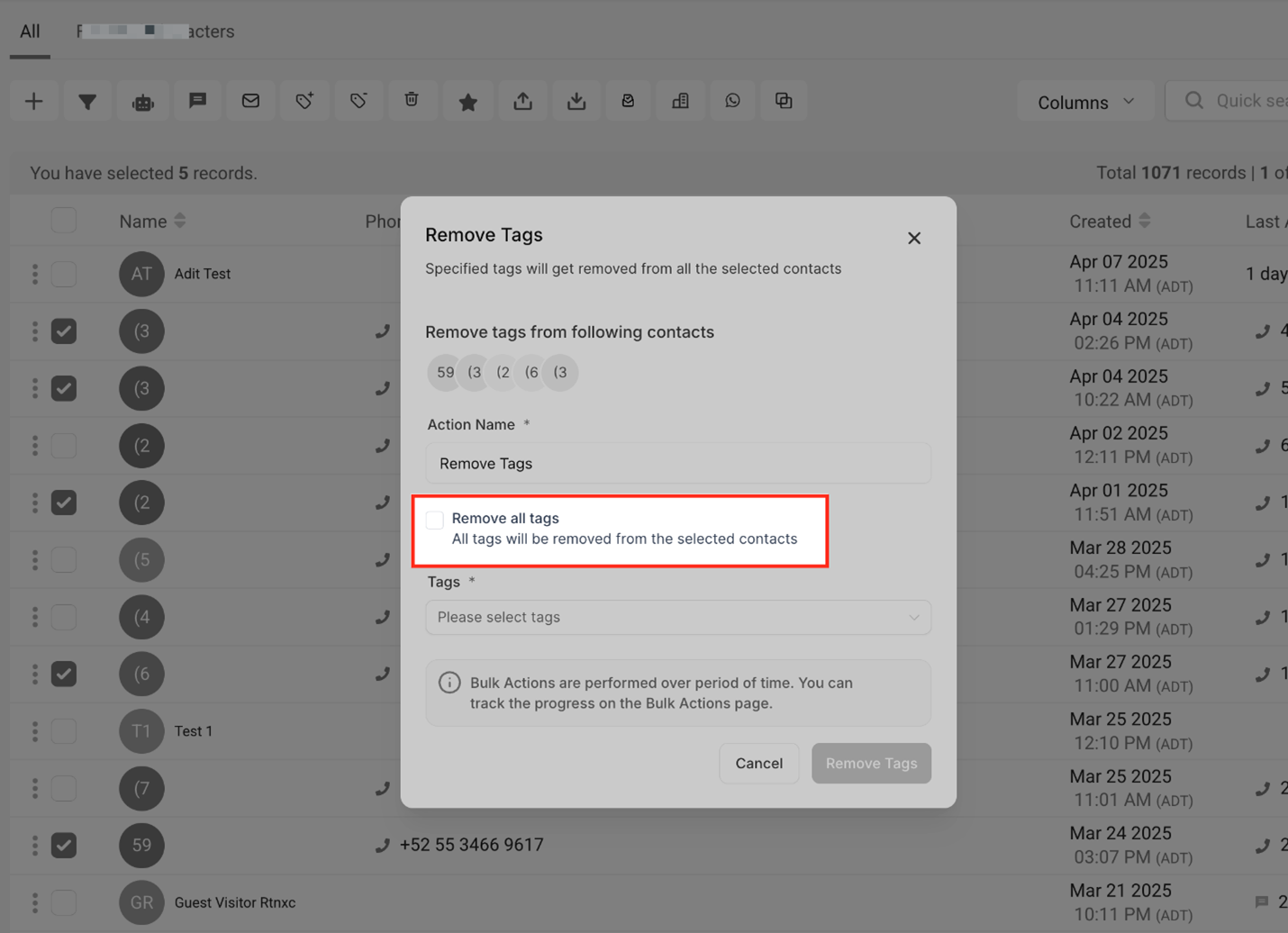
Als je alle tags van de geselecteerde contacten wilt verwijderen, vink dan het vakje Verwijder alle tags aan. Deze optie verwijdert elke tag die aan die contacten is gekoppeld—je hoeft niet te specificeren welke. Het is ideaal voor opruimtaken of wanneer je met een nieuwe taggingstructuur wilt beginnen. Zorg ervoor dat je alle tags wilt verwijderen voordat je dit inschakelt, aangezien het alles in één keer wist.
Selecteer Tags om te Verwijderen
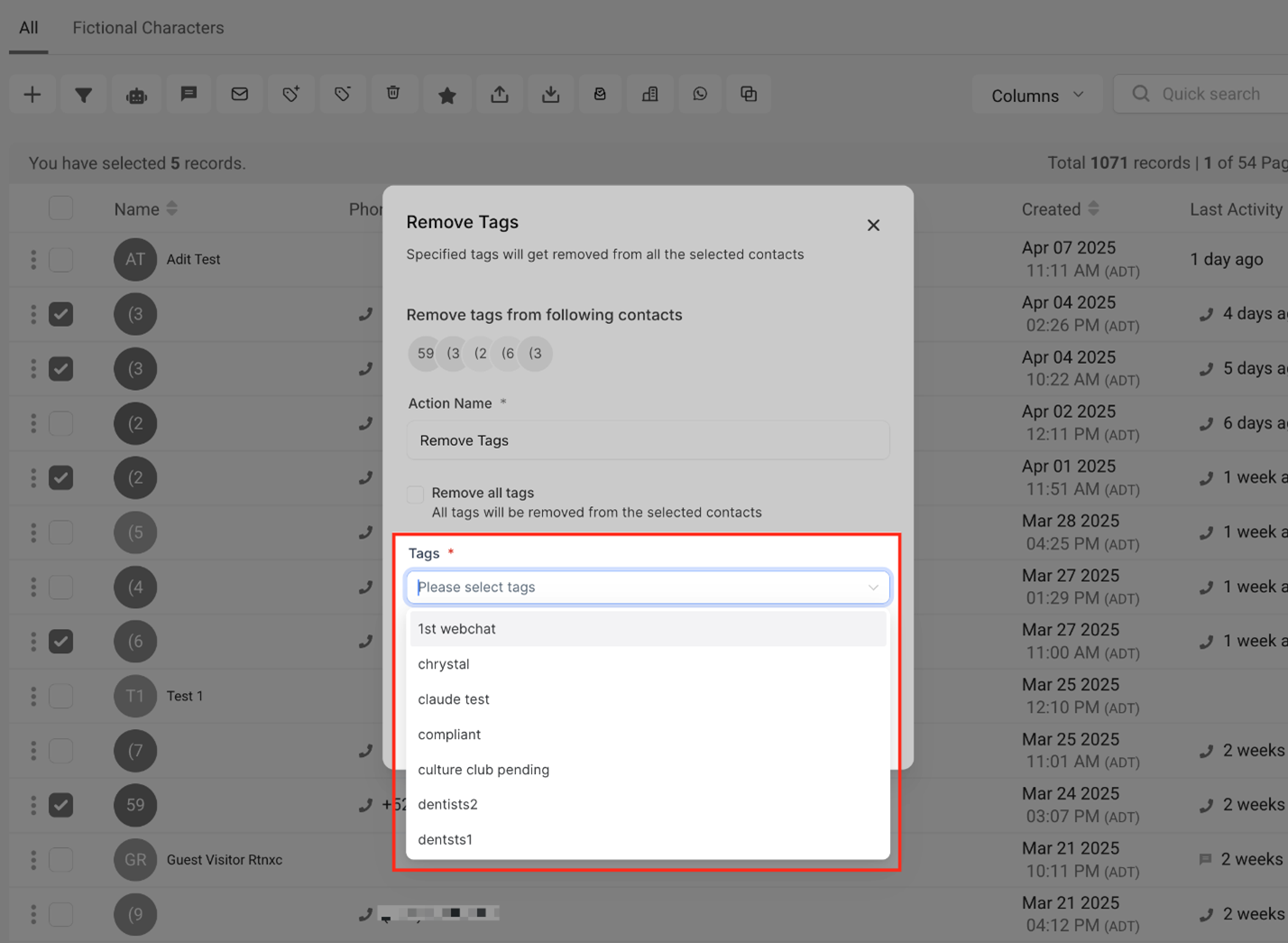
Gebruik de dropdown voor Tags om een of meer tags te kiezen die je wilt verwijderen van de geselecteerde contacten. De lijst toont alle bestaande tags, en je kunt scrollen of zoeken om de juiste te vinden. Dit is handig wanneer je alleen specifieke tags wilt verwijderen terwijl je andere intact houdt. Zorg ervoor dat je het vakje “Verwijder alle tags” niet aanvinkt als je alleen geselecteerde tags wilt verwijderen.
Bevestig de Actie
Zodra je voorkeur voor tags of tagverwijdering is geselecteerd, klik je op de knop Verwijder Tags om het proces te starten. Een pop-upbericht bevestigt dat de operatie is gestart.

Volg de Status van de Bulkactie
Nadat je de actie hebt ingediend, geeft het systeem een bevestiging weer. Klik op Voortgang Veelgestelde Vragen
Q: Kan ik meerdere tags tegelijk van contacten verwijderen?
Ja. Je kunt zoveel tags selecteren als je wilt om in één bulkactie te verwijderen. Kies ze gewoon uit de dropdown in het veld Tags.
Q: Verwijdert het verwijderen van tags enige contactgegevens?
Nee, het verwijderen van tags werkt alleen de manier bij waarop contacten zijn gegroepeerd of gesegmenteerd. Het verwijdert geen contactinformatie.
Q: Kan ik alle tags in één actie van geselecteerde contacten verwijderen?
Ja, vink eenvoudigweg de optie Verwijder alle tags aan in het actievenster om alle tags van de geselecteerde records te wissen.
Q: Kan ik een bulk tagverwijdering ongedaan maken?
Tagverwijderingen kunnen niet direct ongedaan worden gemaakt, maar je kunt tags opnieuw toepassen met de bulkactie Tags Toevoegen indien nodig.
Q: Waar kan ik zien welke contacten tags zijn verwijderd?
Ga naar het tabblad Bulkacties en klik op Statistieken Weergeven naast de relevante actie om de gedetailleerde lijst van contacten en de successtatus te bekijken.
Removing Contact Tags From Multiple Contacts
This article will show you how to remove tags from multiple contacts at once using the “Remove Tags” bulk action. Whether you’re cleaning up outdated segments, restructuring your CRM, or clearing contact metadata, this feature helps you maintain accurate records quickly and efficiently. We’ll walk you through what this action does, why it’s useful, and exactly how to perform it.
TABLE OF CONTENTS
What is Removing Tags from Multiple Contacts
Key Benefits of Removing Tags from Multiple Contacts
Setting Up Remove Contact Tag Bulk Operation
Frequently Asked Questions
What is Removing Tags from Multiple Contacts
Removing tags in bulk allows you to clean up or reorganize contact data quickly. This is especially helpful when contact segmentation needs to be updated, campaigns have ended, or irrelevant tags are cluttering your CRM. Rather than editing each contact individually, bulk removal ensures swift and consistent updates.
Key Benefits of Removing Tags from Multiple Contacts
Bulk tag removal streamlines CRM maintenance and ensures clean, accurate contact segmentation. Here’s why it’s valuable:
Save time by removing tags from many contacts in one go.
Eliminate outdated or incorrect tags that impact automations.
Maintain a well-organized contact tagging structure.
Reduce confusion by clearing unused or overlapping labels.
Support accurate reporting by removing invalid groupings.
Setting Up Remove Contact Tag Bulk Operation
This section walks you through how to remove tags from one or more contacts directly from the Contacts page.
Navigate to the “Contacts” Tab
From the left-hand navigation menu in your dashboard, click on Contacts to access your contact list
Select Multiple Contacts
Use the checkboxes on the left to select the contacts you’d like to remove tags from. You can select individual records or use filters to narrow down groups.
Click the “Remove Tags” Icon
With your contacts selected, click on the Remove Tags icon located in the top action bar. This opens the bulk action panel for tag removal.
Add Action Name
In the pop-up that appears, enter an Action Name for this operation. This will help you identify the action later in the Bulk Actions dashboard.
Remove All Tags from Selected Contacts
If you want to completely clear all tags from the selected contacts, check the Remove all tags box. This option removes every tag associated with those contacts—no need to specify which ones. It’s ideal for cleanup tasks or when you want to start fresh with a new tagging structure. Be sure you want to remove all tags before enabling this, as it clears everything in one go.
Select Tags to Remove
Use the Tags dropdown to choose one or more tags you’d like to remove from the selected contacts. The list will show all existing tags, and you can scroll or search to find the right ones. This is helpful when you want to remove only specific tags while keeping others intact. Be sure not to select the “Remove all tags” checkbox if you only want to remove selected tags.
Confirm the Action
Once your tags or tag removal preference is selected, click the Remove Tags button to begin the process. A pop-up message will confirm that the operation has started.
Monitor Bulk Action Status
After you submit the action, the system displays a confirmation. Click on Check Progress to track the real-time status of the bulk action.

Review Results in Bulk Actions Dashboard
The Bulk Actions dashboard logs all tag removal tasks. You’ll see the operation name, time initiated, completion time, and a Show Stats link for detailed results including contact-level success.

Frequently Asked Questions
Q: Can I remove multiple tags from contacts at once?
Yes. You can select as many tags as you like to remove in one bulk action. Just choose them from the dropdown in the Tags field.
Q: Will removing tags delete any contact data?
No, removing tags only updates how contacts are grouped or segmented. It does not delete any contact information.
Q: Can I remove all tags from selected contacts in one action?
Yes, simply check the Remove all tags option in the action window to clear all tags from the selected records.
Q: Can I undo a bulk tag removal?
Tag removals can’t be undone directly, but you can reapply tags using the Add Tags bulk action if needed.
Q: Where can I see which contacts had tags removed?
Go to the Bulk Actions tab and click Show Stats beside the relevant action to view the detailed list of contacts and success status.