Bulk Acties Voor Contacten & Slimme Lijsten
Leer hoe je je contactenlijsten efficiënt kunt beheren met de krachtige Bulk Acties-tool van Byboostify binnen Slimme Lijsten. Of je nu contacten tagt, berichten verzendt of gegevens importeert, bulkacties kunnen je workflow stroomlijnen en uren handmatig werk besparen.
INHOUDSOPGAVE
Wat zijn Bulk Acties voor Contacten & Slimme Lijsten?
Bekijk de Status van een Bulk Actie
Kenmerk 1: Filtering
Kenmerk 2: Statusindicatoren
Kenmerk 3: Statistieken van Bulk Acties
Kenmerk 4: Beheren van Bulk Acties
Veelgestelde Vragen
Gerelateerde Artikelen
Wat zijn Bulk Acties voor Contacten & Slimme Lijsten?
Bulk Acties stellen je in staat om grootschalige updates voor contacten uit te voeren rechtstreeks vanuit je Slimme Lijsten. Je kunt tags toepassen, e-mails of sms-berichten verzenden, contacten verwijderen of workflows activeren—wat aanzienlijke tijd bespaart op repetitieve taken.
Bekijk de Status van een Bulk Actie
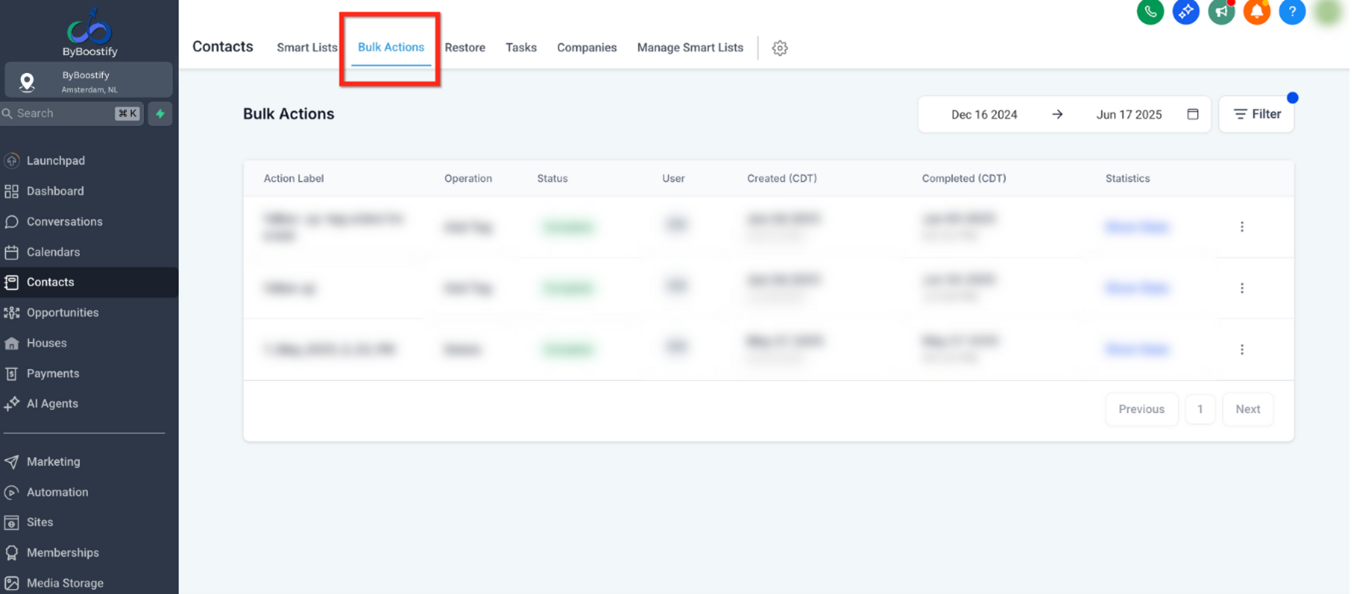
Om de status van een Bulk Actie te bekijken, ga je naar Contacten > Bulk Acties > Statistieken Weergeven. Je kunt ook verdere details over de Bulk Actie pauzeren, annuleren of bijwerken door op de drie stippen aan de rechterkant van een bulkactie te klikken.
Kenmerk 1: Filtering
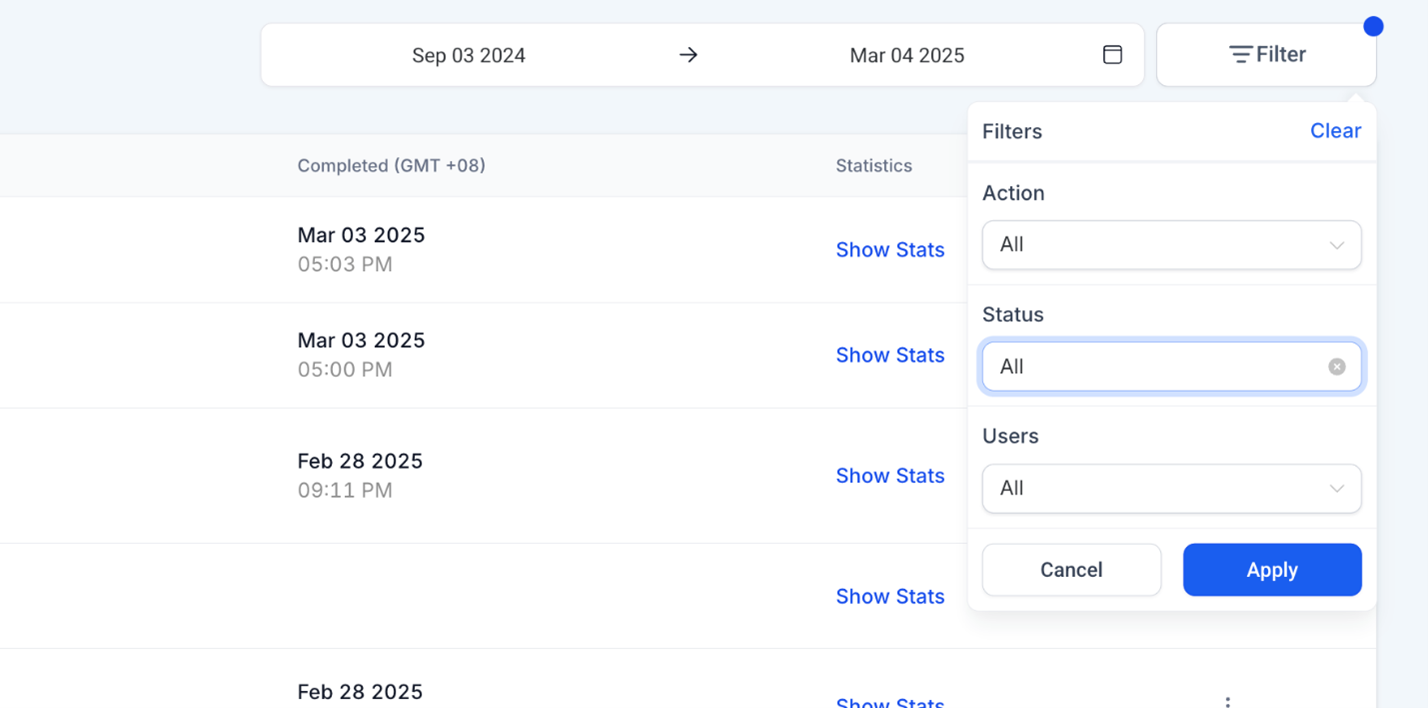
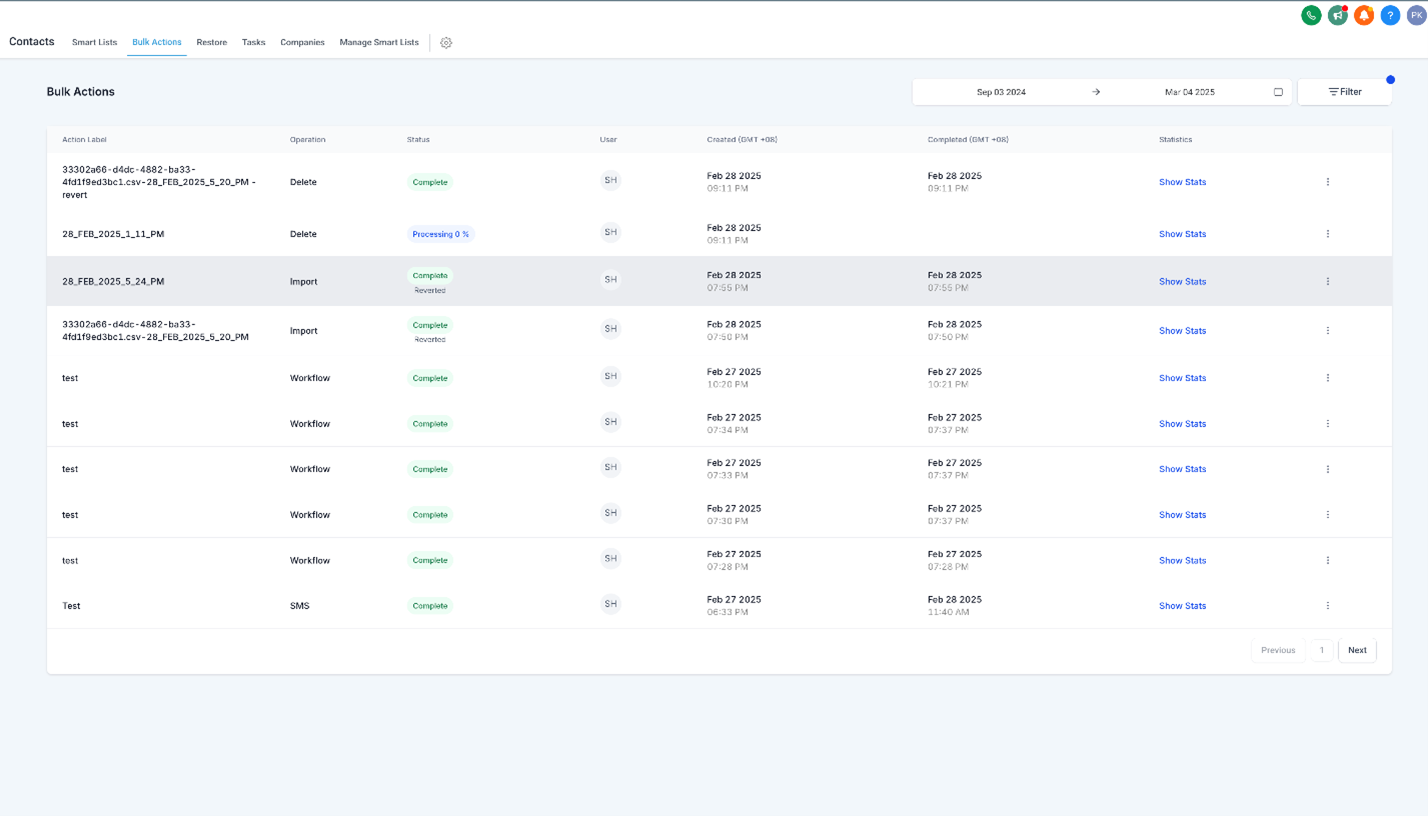
Gebruikers kunnen hun weergave van bulkacties verfijnen met de filteroptie in de rechterbovenhoek van de pagina Bulk Acties.
Ondersteunde Filters:
Actietype (Importeren, Verwijderen, Workflow, enz.)
Status (Voltooid, In Behandeling, Geannuleerd, enz.)
Gebruikers (Filter op gebruiker die de bulkactie heeft geïnitieerd)
Datumbereik (Selecteer een specifieke tijdsperiode om bulkacties te bekijken)
Gefilterde weergaven kunnen worden gedeeld via een URL, wat snelle toegang tot relevante bulkacties mogelijk maakt.
Kenmerk 2: Statusindicatoren
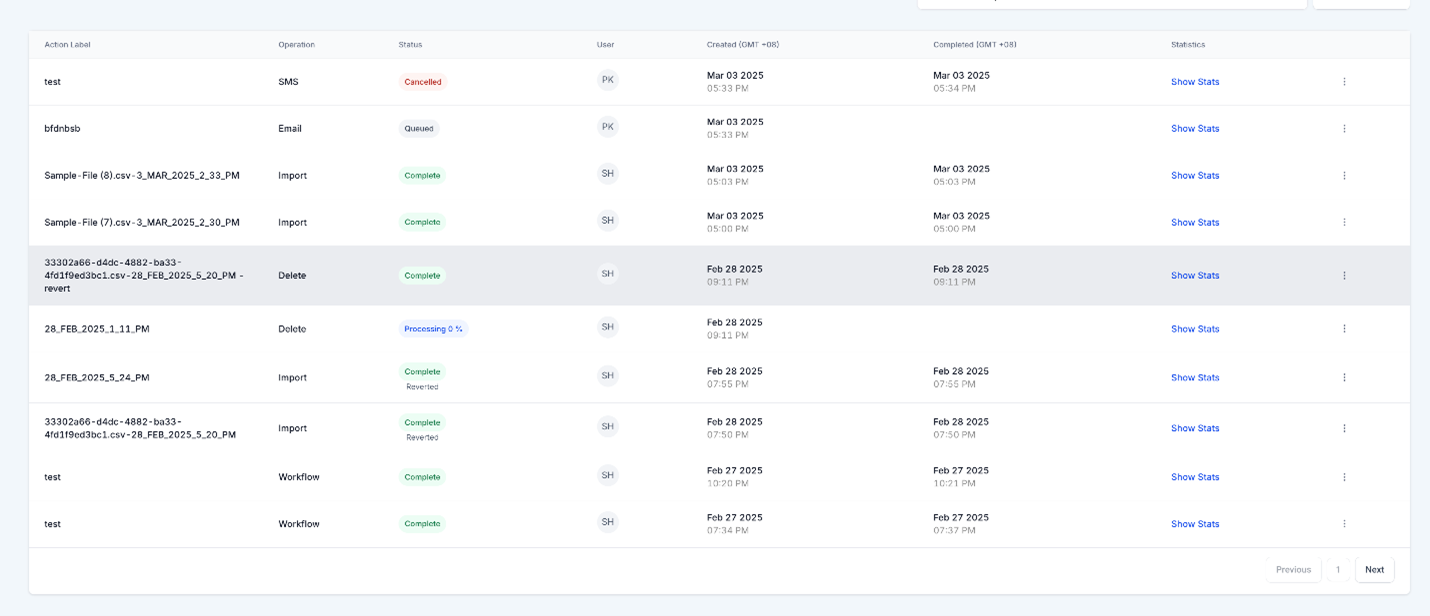
Kleurgecodeerde statusindicatoren helpen gebruikers snel de staat van elke bulkactie te identificeren:
Groen: Voltooid
Rood: Geannuleerd
Blauw: In Behandeling (met realtime percentage-updates)
Kenmerk 3: Statistieken van Bulk Acties
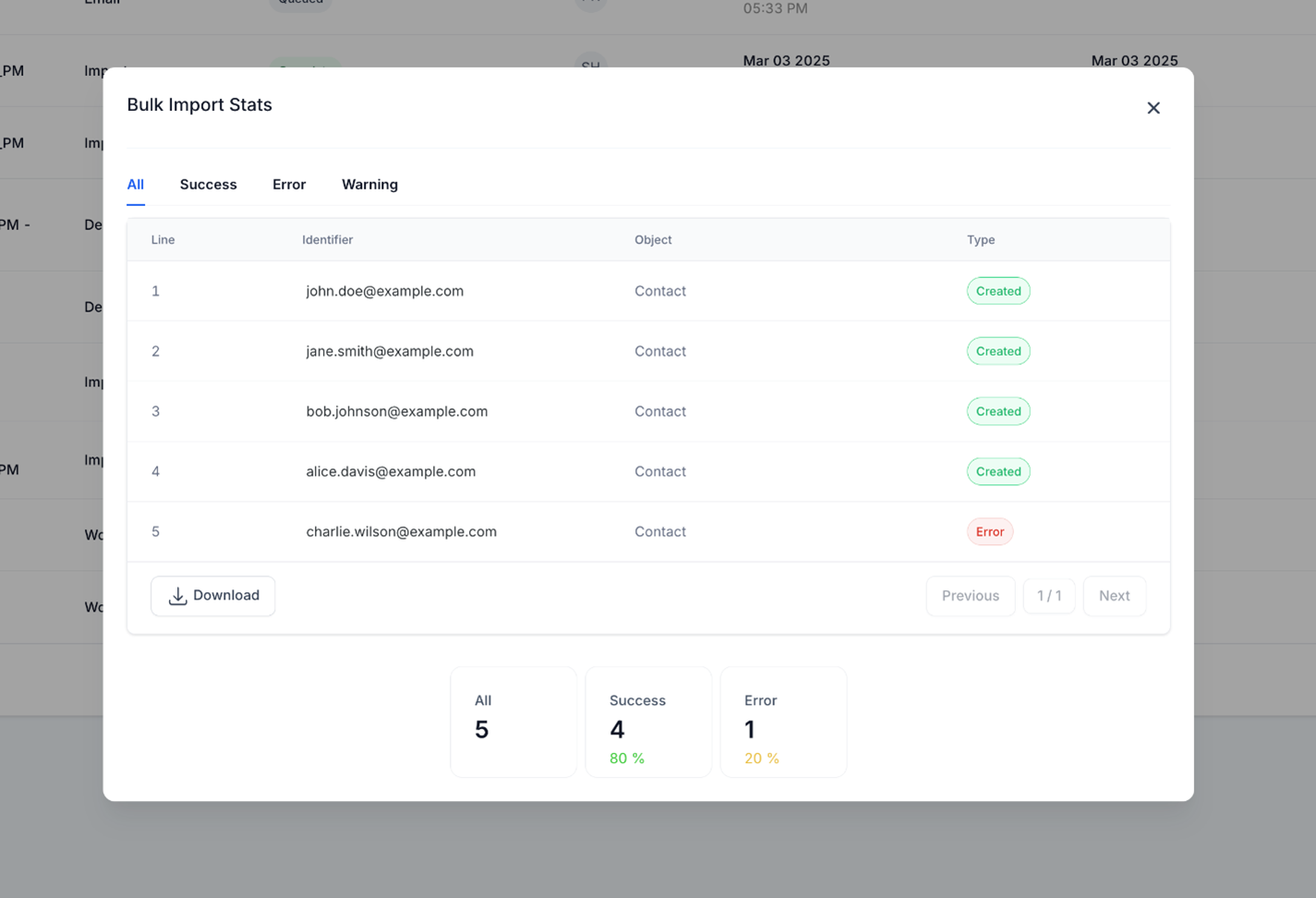
Je kunt belangrijke statistieken voor elke bulkactie bekijken door op Statistieken Weergeven naast een actie te klikken. Een gedetailleerde uitsplitsing omvat:
Totaal verwerkte acties
Aantal succesvolle acties
Fouten en waarschuwingen
Downloadbare rapporten voor diepere analyse
Kenmerk 4: Beheren van Bulk Acties

Gebruikers kunnen verschillende acties ondernemen op bulkprocessen. Beschikbare Acties:
Annuleer een lopende bulkactie
Herstel een voltooide bulkactie
Pauzeer en hervat lopende acties

Hoe Bulk Acties te Beheren:
Klik op het menu met drie stippen (⋮) naast een bulkactie.
Selecteer de gewenste actie (Annuleren, Herstellen, Pauzeren, Hervatten).
Bevestig de actie in de pop-up.
Een melding bevestigt het succes of falen van de actie.
Veelgestelde Vragen
Q: Kan ik een bulk SMS of e-mail verzenden ongedaan maken?
Nee, communicatieacties zijn definitief zodra ze zijn verzonden.
Q: Hoe lang duren bulkacties om te voltooien?
Het hangt af van het aantal contacten. Bulkacties kunnen binnen enkele seconden of enkele minuten worden voltooid.
Q: Kan ik zien welke contacten zijn beïnvloed?
Ja, het rapport van elke actie toont de beïnvloede contacten.
Q: Wat gebeurt er als sommige contacten falen in een actie?
Fouten worden geregistreerd; je kunt mislukte vermeldingen opnieuw proberen.
Bulk Actions for Contacts & SmartLists
Learn how to efficiently manage your contact lists using Byboostify's powerful Bulk Actions tool within SmartLists. Whether you're tagging contacts, sending messages, or importing data, bulk actions can streamline your workflow and save hours of manual effort.
TABLE OF CONTENTS
What is Bulk Actions for Contacts & SmartLists?
View The Status of a Bulk Action
Feature 1: Filtering
Feature 2: Status Indicators
Feature 3: Bulk Action Statistics
Feature 4: Managing Bulk Actions
Frequently Asked Questions
Related Articles
What are Bulk Actions for Contacts & SmartLists?
Bulk Actions allow you to perform large-scale updates to contacts directly from your SmartLists. You can apply tags, send emails or SMS messages, delete contacts, or trigger workflows—saving significant time on repetitive tasks.
View The Status of a Bulk Action
To view the status of a Bulk Action, go to Contacts > Bulk Actions > Show Stats. You can also pause, cancel, or update further details about the Bulk Action by clicking on the three dots on the right of any bulk action.
Feature 1: Filtering
Users can refine their bulk action view using the Filter option in the top right corner of the Bulk Actions page.
Supported Filters:
Action Type (Import, Delete, Workflow, etc.)
Status (Complete, In Progress, Cancelled, etc.)
Users (Filter by user who initiated the bulk action)
Date Range (Select a specific timeframe to view bulk actions)
Filtered views can be shared via a URL, allowing quick access to relevant bulk actions.
Feature 2: Status Indicators
Color-coded status indicators help users quickly identify the state of each bulk action:
Green: Completed
Red: Cancelled
Blue: In Progress (with real-time percentage updates)
Feature 3: Bulk Action Statistics
You can view key metrics for each bulk action by clicking Show Stats next to an action. A detailed breakdown includes:
Total actions processed
Success count
Errors and warnings
Downloadable reports for deeper analysis
Feature 4: Managing Bulk Actions
Users can take various actions on bulk processes. Available Actions:
Cancel a running bulk action
Revert a completed bulk action
Pause & Resume ongoing actions
How to Manage Bulk Actions:
Click the three-dot menu (⋮) next to a bulk action.
Select the desired action (Cancel, Revert, Pause, Resume).
Confirm the action in the modal popup.
A notification will confirm the action’s success or failure.
Frequently Asked Questions
Q: Can I undo a bulk SMS or email send?
No, communication actions are final once sent.
Q: How long do bulk actions take to complete?
It depends on contact count. Bulk actions can be completed within seconds or take several minutes.
Q: Can I view which contacts were affected?
Yes, each action’s report lists affected contacts.
Q: What happens if some contacts fail in an action?
Failures are logged; you can retry failed entries.